
If ShareFile is not allowing you to open or save files to your U: or S: drives, then the configuration is likely corrupted.
IMPORTANT:
If you are having trouble saving to ShareFile, save your file to another location temporarily, otherwise your progress will be lost.
Step 1:
You should have a ShareFile S icon in your system tray (lower right corner of your desktop), possibly hidden behind a ^ icon.
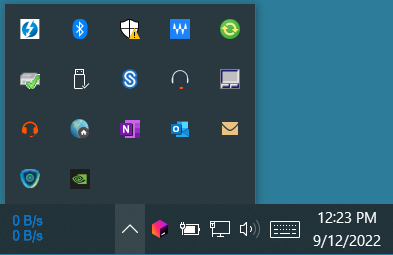
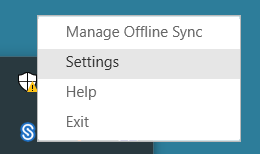
Right-click on the S icon and select Settings.
Step 2:
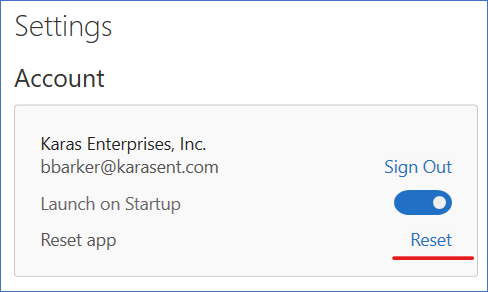
Click on the "Reset" link in the Account box.
Step 3:
After the reset completes, ShareFile will relaunch and you should have full access to your files again.
- You may have to sign into ShareFile, but you may not.
- All files will be remote after a reset. Large files may take extra time to open.
- Any unsynced data will be lost after a reset.