With Outlook authenticating against Microsoft Azure, you may have to double check a few things when signing into Outlook.
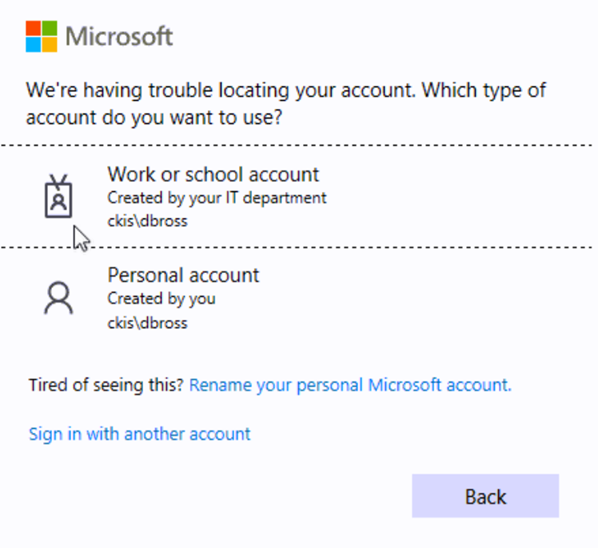
When you first sign in, you may be presented with a dialog looking like this.
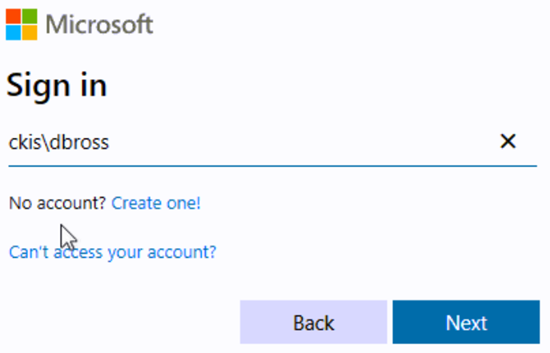
Notice the "ckis\" portion of the user name. Azure does not recognize that. Click on the "Sign in with another account" link towards the bottom.
Your account name is your email address.
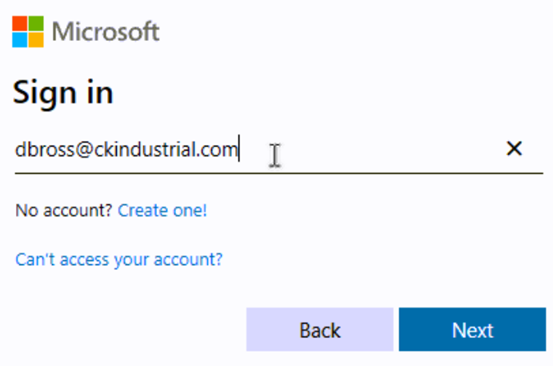
Change the username from "ckis\YOU" to your email address.
eg - YOU@ckindustrial.com
Azure might need a little hand holding.
If you get that first dialog referencing your email address, be sure to click on "Work or school account".
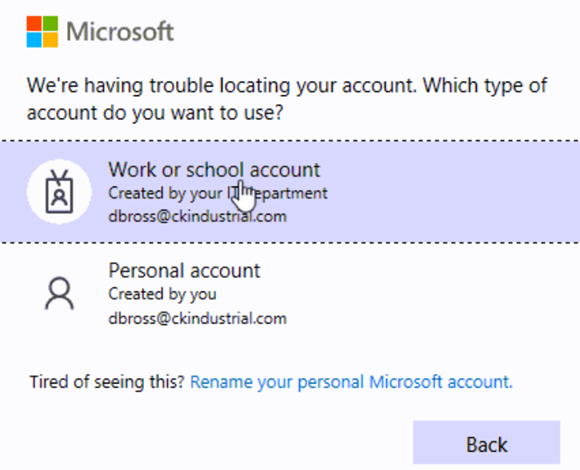
If for some reason selecting "Work or school account" doesn't work right away, go back to this dialog, wait 30 seconds and try again. For our organization Azure is not the authoritative source. It has to verify with our servers that your user account exists and is eligible for login.
Continue the login process.
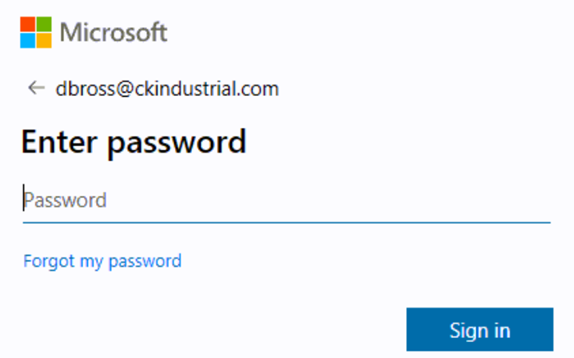
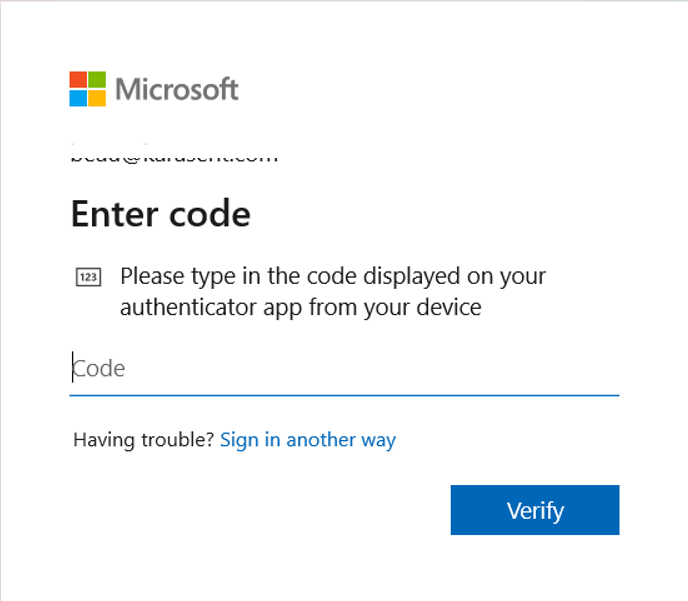
Once you get here, everything else should be normal. Enter your password and possibly your MFA token value.
One final note.
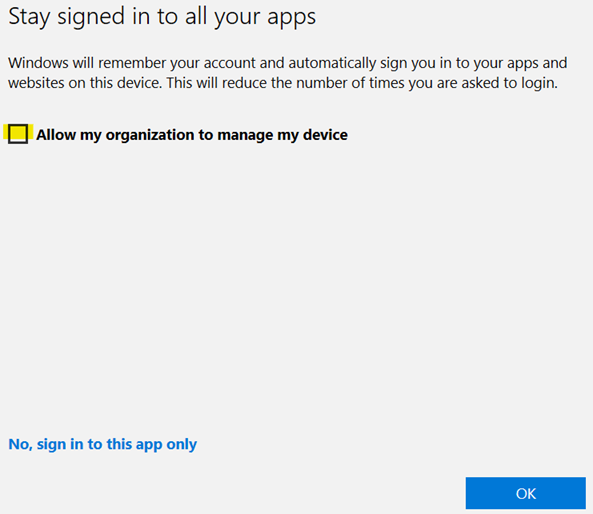
Azure is not being used to manage our devices. We are using our internal servers to do that. The final stage of login may present you with this dialog. If so, clear the "Allow my organization to manage my device" checkbox before clicking "OK".