
Cause
Digital display outputs support sending audio to monitors in addition to video. When you plug in a digital display or dock with a digital display connected, the computer may switch to the digital output automatically.
Resolution
- The quick fix is to click on your sound icon
 in the system tray to bring up the volume control.
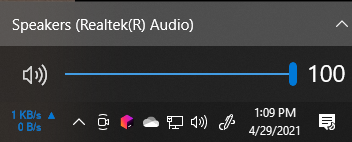 Click on the ^ icon to show your audio outputs.
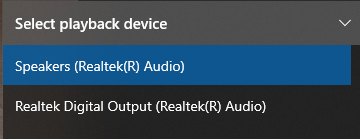 And then select the correct audio output. Windows will continue to use the selected audio output until the audio configuration changes again (plugging in a different monitor, plugging in speakers or headphones, etc).
 - Another option is to disable the usurping audio device, but if you ever do switch to an audio-enabled monitor, you may have to reverse this setting to use it.
Right-click on the sound icon in the system tray.
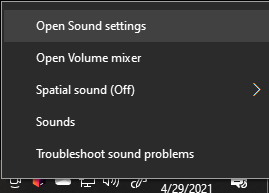 Select "Open Sound settings" from the context menu.
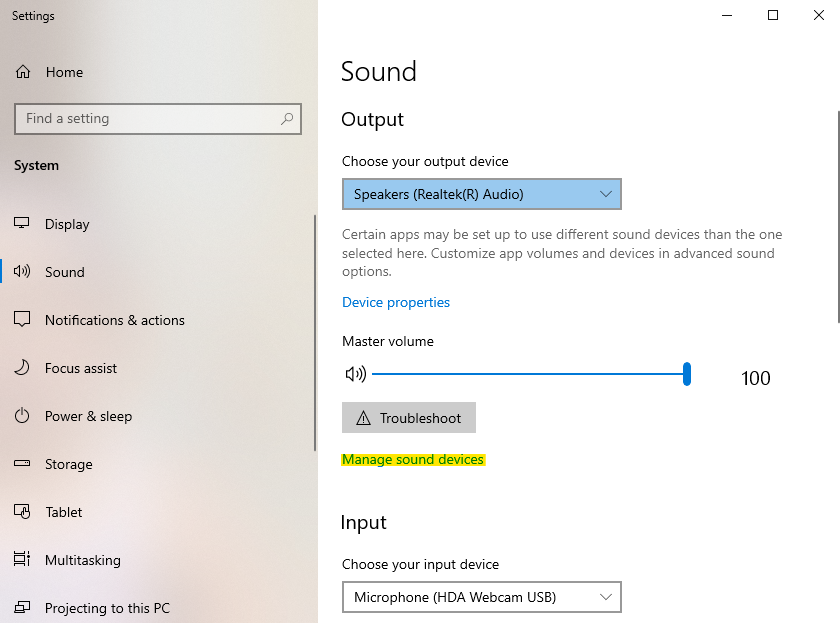 Click on the "Manage sound devices" link at the bottom of the Output section.
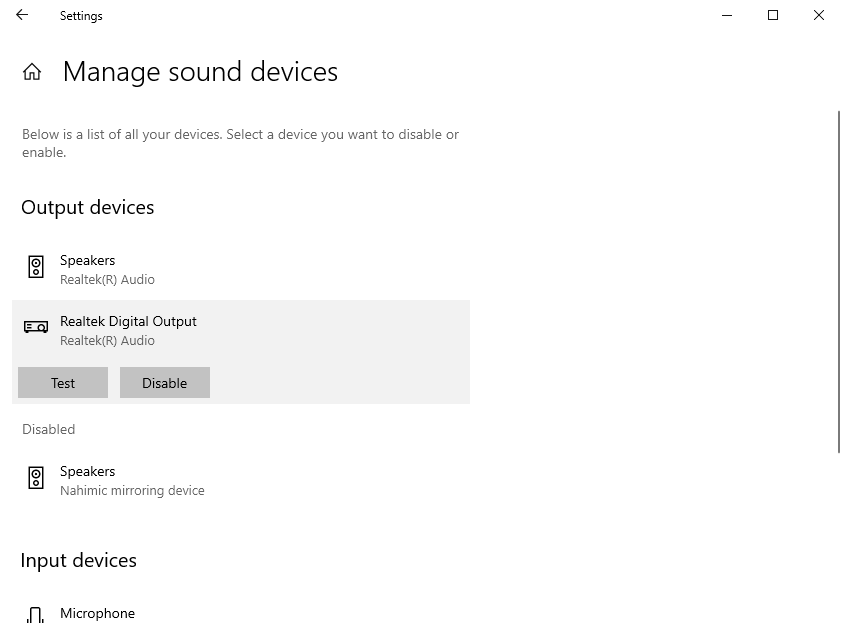 Select the sound device that you don't want to use and then click the "Disable" button to turn it off.
Once disabled, Windows will not use that output again until it is re-enabled.
Either of the two methods listed should resolve your sound output problem provided the digital display was the cause. If this does not help you, please open a ticket for support.